Operands: Indicator, Function, Constant and Bar
A condition compares two operands with an operator:
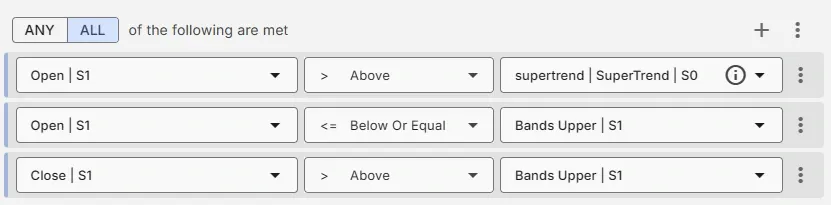
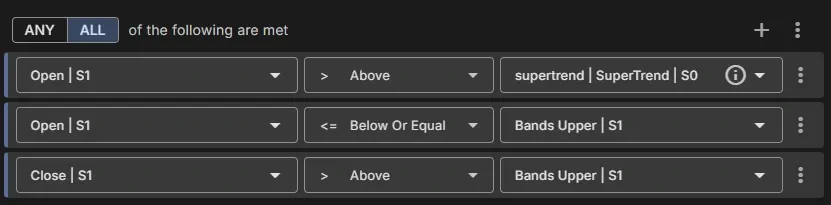
Close | S1 Above Bands Upper | S1. Click an operand in the signal editor: a picker opens, and at the top you
choose the kind of operand.
In short:
-
Indicator: a line or arrow of an indicator in your EA, with a Shift.
-
Function: a built-in value such as Ask, Bid, Hour or the profit of your open orders.
-
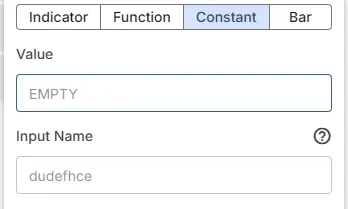
Constant: a fixed value, optionally an input in MetaTrader.
-
Bar: the Open, High, Low or Close of a bar, on any timeframe, with a Shift.
-
Shift (Bar): which bar a value comes from. 0 is the current bar, 1 the last closed bar.
-
Indicator: a line or arrow (mode) of an indicator you added to your EA, for example
Bands Upper | S1. -
Function: a built-in value (prices, account, date and time, order values), for example
Ask,Hour. -
Constant: a fixed value, optionally an input in MetaTrader, for example
30. -
Bar: the Open, High, Low or Close of a bar, for example
High H1 | S1.
Indicator
Section titled “Indicator”Uses the value of an indicator you added to your EA.
- Shift (Bar): which bar’s value you want to use. See Shift (Bar).
- The list: every selected mode (line or arrow) of your indicators, for example
Bands Upperorsupertrend | SuperTrend. Click one to use it; the picker closes. - No indicators yet? The list asks you to add an indicator first, in the Indicators column of the EA editor.
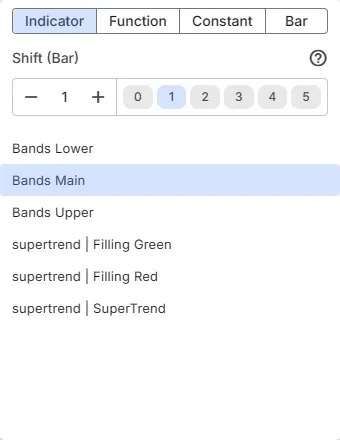
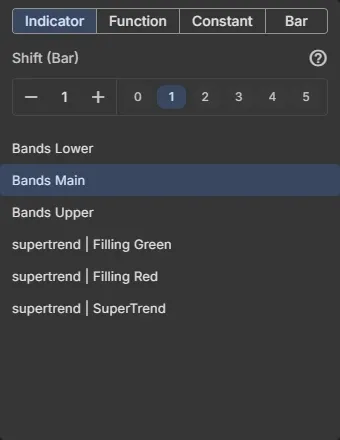
How to use the modes of an arrow or color indicator: Use indicator in Trading Signal.
Function
Section titled “Function”A Function is a built-in value that MetaTrader calculates: a price, an account value, the date and time, or a value of your orders. Functions have no Shift.
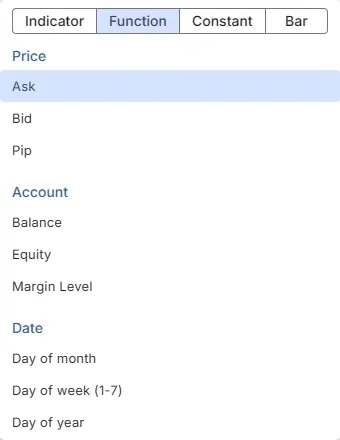
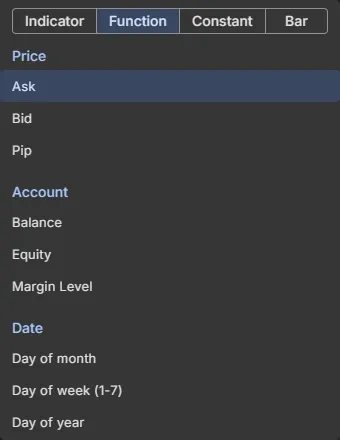
The price functions give information about the current price of your symbol.
- Ask: the current price requested by your broker (the buy price)
- Bid: the current price offered by your broker (the sell price)
- Pip: the value of 1 pip. For EURUSD this is 0.0001
Account
Section titled “Account”The account functions give information about your trading account.
- Balance: the current balance of your account
- Equity: the current equity of your account: balance + floating profit(s)
- Margin Level: the current margin level of the account
The date functions give the date and time of the broker’s server (MetaTrader’s server time), not your local time.
- Day of month: a number between 1 and 31. Each month it begins with 1 and ends with 28 to 31, depending on the length of the month
- Day of week (1-7): a number for the day: 0 (Sunday), 1 (Monday) to 6 (Saturday)
- Day of year: the day of the year. MT4: 1 (1 January) to 365 or 366 (31 December). MT5: 0 (1 January) to 364 or 365
- Hour: a number between 0 (0 am) and 23 (11 pm)
- Minutes: a number between 0 and 59
- Month of year: a number between 1 (January) and 12 (December)
- Seconds: a number between 0 and 59
- Year: the year, for example 2026
The order functions give information about the orders of your EA. Most come in three variants: all orders, only buy orders and only sell orders.
Number of open orders
Section titled “Number of open orders”- No. of open orders: the number of currently open orders.
- No. open buy orders: the same, for buy orders only.
- No. open sell orders: the same, for sell orders only.
Open price
Section titled “Open price”- Open price: the price at which the order was opened (see “In a signal or in a module?”).
- Open price highest: the price at which the open order with the highest open price was opened.
- Open price highest buy: the same, for buy orders only.
- Open price highest sell: the same, for sell orders only.
- Open price lowest: the price at which the open order with the lowest open price was opened.
- Open price lowest buy: the same, for buy orders only.
- Open price lowest sell: the same, for sell orders only.
- Open price newest: the price at which the newest open order was opened.
- Open price newest buy: the same, for buy orders only.
- Open price newest sell: the same, for sell orders only.
- Open price oldest: the price at which the oldest open order was opened.
- Open price oldest buy: the same, for buy orders only.
- Open price oldest sell: the same, for sell orders only.
- Open price closed: the price at which the most recent closed order was opened.
- Open price closed buy: the same, for buy orders only.
- Open price closed sell: the same, for sell orders only.
Close price
Section titled “Close price”- Close price: the price at which the most recent closed order was closed.
- Close price buy: the same, for buy orders only.
- Close price sell: the same, for sell orders only.
- Open seconds: the duration in seconds since the order was opened (see “In a signal or in a module?”).
- Open seconds newest: the duration in seconds since the newest open order was opened.
- Open seconds newest buy: the same, for buy orders only.
- Open seconds newest sell: the same, for sell orders only.
- Closed seconds: the duration in seconds since the last closed order was closed.
- Closed seconds buy: the same, for buy orders only.
- Closed seconds sell: the same, for sell orders only.
Profit
Section titled “Profit”- Profit money open orders: the total profit of the open orders in account currency.
- Profit money buy orders: the same, for buy orders only.
- Profit money sell orders: the same, for sell orders only.
- Profit pips open orders: the total profit of the open orders in pips.
- Profit pips buy orders: the same, for buy orders only.
- Profit pips sell orders: the same, for sell orders only.
Stop loss and take profit
Section titled “Stop loss and take profit”- Stop loss: the closest stop loss of the order (see “In a signal or in a module?”).
- Stop loss newest: the closest stop loss of the newest open order.
- Stop loss newest buy: the same, for buy orders only.
- Stop loss newest sell: the same, for sell orders only.
- Stop loss oldest: the closest stop loss of the oldest open order.
- Stop loss oldest buy: the same, for buy orders only.
- Stop loss oldest sell: the same, for sell orders only.
- Take profit: the closest take profit of the order (see “In a signal or in a module?”).
- Take profit newest: the closest take profit of the newest open order.
- Take profit newest buy: the same, for buy orders only.
- Take profit newest sell: the same, for sell orders only.
- Take profit oldest: the closest take profit of the oldest open order.
- Take profit oldest buy: the same, for buy orders only.
- Take profit oldest sell: the same, for sell orders only.
If an order has no stop loss or take profit, the value is the Empty value: a long number (2147483647).
Volume
Section titled “Volume”- Volume open orders: the total volume (lot size) of the open orders managed by this EA.
- Volume open orders buy: the same, for buy orders only.
- Volume open orders sell: the same, for sell orders only.
Constant
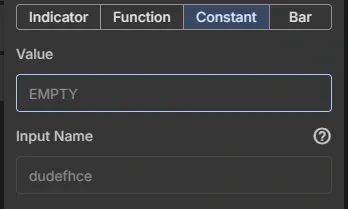
Section titled “Constant”A Constant is a fixed value that you type. It has two fields:
- Value: the fixed value, for example
30for an RSI level or9for an hour. Empty means EMPTY, the MetaTrader empty value: a long number (2147483647) - Input Name: optional. Makes the value an input that you can change in MetaTrader on the Inputs tab, under this name
The same Input Name used several times in a signal or module becomes one shared input in MetaTrader, which simplifies optimization.
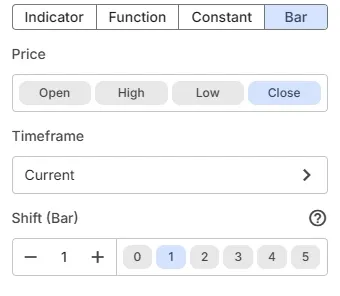
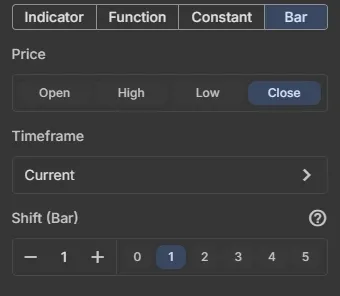
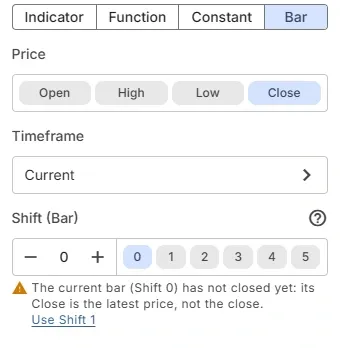
The Bar operand uses a price of a bar (candle): its Open, High, Low or Close, on the chart’s timeframe or a fixed one. You don’t have to add an indicator first.
On the button the operand reads as price, timeframe and shift: Close | S1 is the Close of the previous bar on the
chart’s timeframe, High H1 | S1 the High of the previous H1 bar.
Add a Bar operand
Section titled “Add a Bar operand”- Open a signal and click the left or right side of a condition. On a new condition, click Add Condition first.
- Click Bar at the top of the picker.
- Choose the Price. The picker stays open.
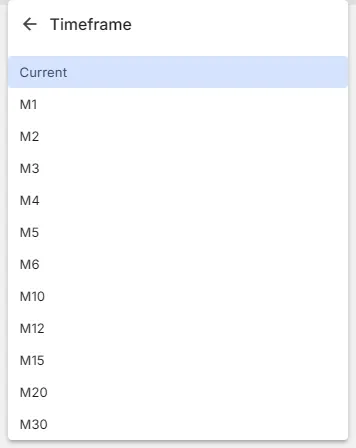
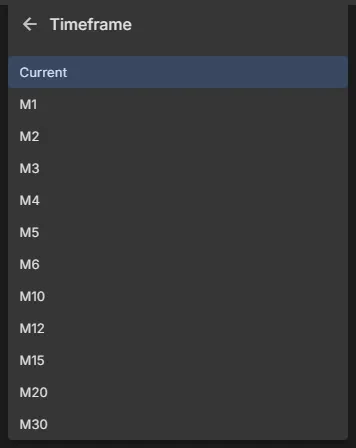
- Optional: click Timeframe to pick another timeframe than the chart’s.
- Choose the Shift (Bar): a chip from 0 to 5 sets it and closes the picker. For a higher Shift, use − and + or type it.
- Click Save to save the signal.
Open, High, Low or Close
Section titled “Open, High, Low or Close”| Price | What it is | On the current bar (Shift 0) |
|---|---|---|
| Open | The first price of the bar | Fixed once the bar has opened |
| High | The highest price of the bar | Can still go up until the bar closes |
| Low | The lowest price of the bar | Can still go down until the bar closes |
| Close | The last price of the bar | Not closed yet: it is the latest price (Bid) |
Timeframe of a bar
Section titled “Timeframe of a bar”- Current (default) is the timeframe of the chart the EA runs on, or the timeframe you choose for a backtest.
- A fixed timeframe always uses that timeframe, whatever the chart is. Use it to compare with a higher timeframe, for
example yesterday’s High (
High D1 | S1) on an M15 chart.
The list shows the timeframes of your platform:
- MT4: M1, M5, M15, M30, H1, H4, D1, W1, MN1
- MT5: M1, M2, M3, M4, M5, M6, M10, M12, M15, M20, M30, H1, H2, H3, H4, H6, H8, H12, D1, W1, MN1
Bar examples
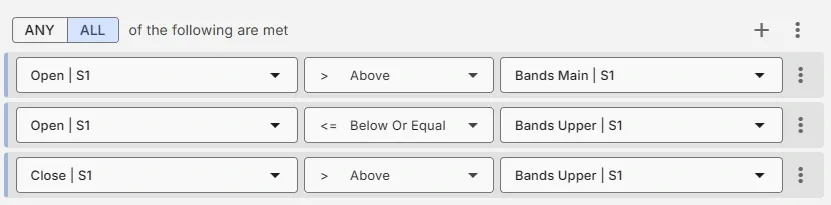
Section titled “Bar examples”Close | S1AboveBands Upper | S1: the last closed bar closed above the upper Bollinger BandClose | S1AboveHigh H1 | S1: the last closed bar closed above the High of the previous hourBidAboveHigh D1 | S1: the price breaks above yesterday’s HighLow | S1BelowLow | S2: the last closed bar made a lower low
Bar operand or bar indicator?
Section titled “Bar operand or bar indicator?”Earlier, a bar price was an indicator (Bar Open, Bar High, Bar Low, Bar Close) that you added to the EA first. The Bar operand replaces that:
- Nothing to add: EA Builder Pro manages the bar prices behind the scenes. They don’t show in your Indicators list.
- Existing EAs keep working: a condition with a bar indicator shows as a Bar operand. It is stored as one when you save the signal.
- The same MQL: the exported EA uses
iOpen,iHigh,iLowandiCloseon the chart’s symbol, as before.
The reference pages describe each price in detail:
- Open: Bar Open (MT4), Bar Open (MT5)
- High: Bar High (MT4), Bar High (MT5)
- Low: Bar Low (MT4), Bar Low (MT5)
- Close: Bar Close (MT4), Bar Close (MT5)
Shift (Bar)
Section titled “Shift (Bar)”Every Indicator and Bar operand has a Shift (Bar): which bar (candle) the value comes from.
- Shift 0 is the current bar. It has not closed yet, so its values can still change.
- Shift 1 is the previous bar: the last closed bar. Its values are final.
- Most strategies use Shift 1: the signal is stable and the same in a backtest and on a live chart.
What Shift means
Section titled “What Shift means”The Shift counts bars from the current bar back in time:
-
Shift 0: the current bar. Still changing until the bar closes.
-
Shift 1: the previous bar. Final: the last closed bar.
-
Shift 2: the bar before the previous bar. Final.
-
Shift 3, 4, …: further back. Final.
-
The chips 0 to 5 set the Shift in one click. For a higher Shift, use − and + or type it.
-
The Shift counts bars of the timeframe the value is calculated on. An indicator or Bar operand on H1 counts H1 bars, also when the EA runs on an M5 chart.
-
Each operand has its own Shift. A condition can compare the current Close with the High of 2 bars ago.
Shift 0 or Shift 1?
Section titled “Shift 0 or Shift 1?”| Shift 0 | Shift 1 | |
|---|---|---|
| Reacts | During the bar, as soon as the condition is true | When the bar has closed, one bar later |
| Values | Can still change until the bar closes | Final |
| Signal | Can appear and disappear within the same bar | Stays as it is |
| Use for | Values that are fixed during the bar, such as the Open, or when the EA must react during the bar | Most indicator and price conditions |
Shift marks
Section titled “Shift marks”When you pick a Shift, EA Builder Pro checks it against what is known about the indicator or price. A problem shows as an icon on the operand button and as a text under the Shift field in the picker:
| Mark | Text in the app | What to do |
|---|---|---|
| Error | Enter a Shift (Bar). | Enter a Shift: the signal can’t be generated without one |
| Warning | This indicator has no value yet on Shift 0: it only fills in a bar after it has closed. | Use the Shift the link proposes: on this Shift the condition is always or never true |
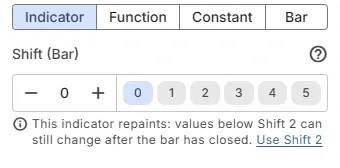
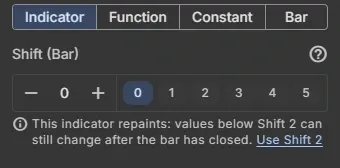
| Info | This indicator repaints: values below Shift 2 can still change after the bar has closed. | Use a higher Shift for a stable signal, or keep it if you want early signals |
Under a warning or info text, Use Shift N sets the proposed Shift in one click.
Repainting indicators
Section titled “Repainting indicators”An indicator repaints when it changes the value of a bar that has already closed. Arrow and signal indicators often do this: an arrow appears on the current bar, and moves or disappears a bar later.
- An EA on Shift 0 can open an order on an arrow that is gone a moment later.
- Many arrow indicators don’t paint the current bar at all. On Shift 0 the condition then never sees an arrow: that is the warning mark.
- Use the Shift from the info mark, or Shift 1 or higher, to act only on values that stay.
How to use an arrow or color indicator in a condition: Use indicator in Trading Signal.
Shift of a Bar operand
Section titled “Shift of a Bar operand”The current bar has not closed yet, so its High, Low and Close can still change. The picker marks this under the Shift field and on the operand button, with a Use Shift 1 link that fixes it in one click:
- Close: the Close is the latest price, not the close of the bar (warning).
- High, Low: the value can still change until the bar closes (info).
- Open: the Open of the current bar is fixed (none).
Related
Section titled “Related”- Trading Signals: signals, conditions and groups
- Operators: compare and calculate operands
- Use indicator in Trading Signal: arrow and color indicators
MetaTrader is a registered trademark of MetaQuotes Ltd. EA Builder Pro is not affiliated with MetaQuotes.