Your backtests: find, filter and restore
Backtest in the navigation lists all your backtests, newest first. Each row shows how the backtest went at a glance.
In short:
- Each row shows the EA, symbol, timeframe and period, a balance curve and the result.
- Search, Filters and the sort order help you find and compare backtests.
- A badge shows the status of a backtest that is not finished, or that has no result.
- Deleted backtests stay in the Trash for 7 days.
The backtest list
Section titled “The backtest list”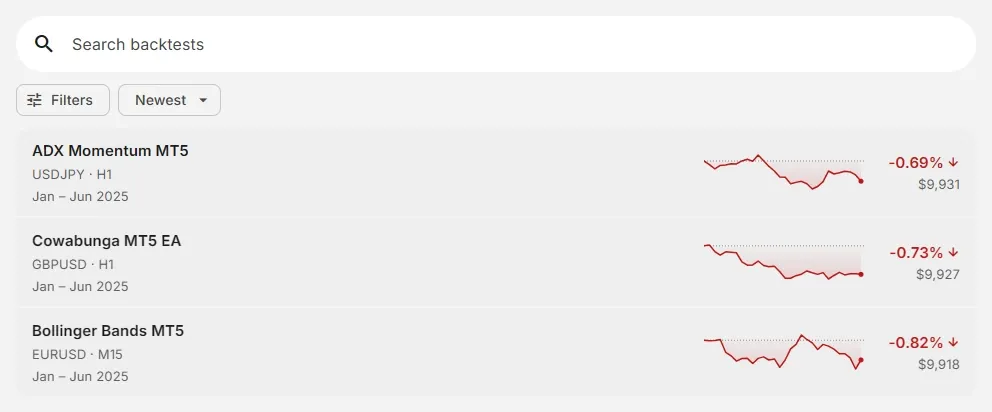
Each row shows:
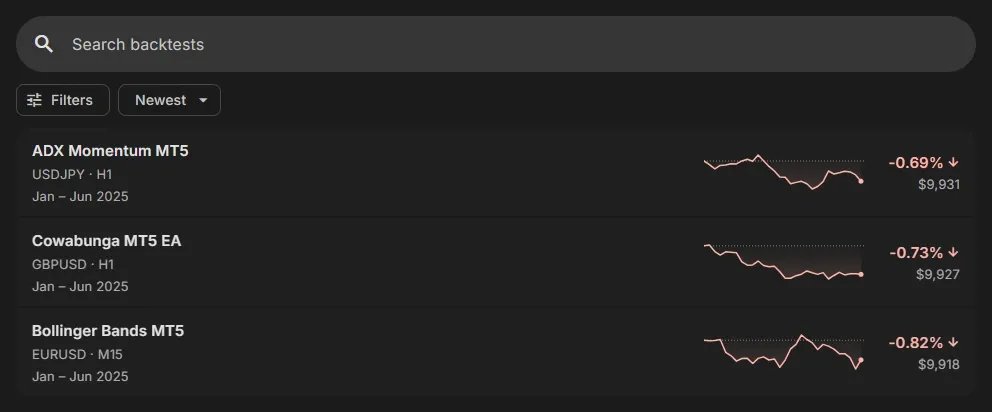
- Name: the name of the backtest, usually the EA’s name.
- Symbol · timeframe and the period, for example
EURUSD · M15andJan – Jun 2025. - Balance curve: the balance during the backtest, from start to end.
- Result: the profit or loss in %, and the balance at the end.
The list only shows the backtests of the platform you selected with the platform button (MT4 / MT5) in the app bar.
Click a backtest to open it.
Search, filter and sort
Section titled “Search, filter and sort”- Search: finds backtests by name.
- Filters: narrow the list down by Status, Result, Symbols, Timeframes, Test period, Test model, Execution mode, Settings, Created and Created by, and by ranges: Min./Max. profit, Max. drawdown, Min./Max. spread and Min./Max. start balance.
- Sort: Newest, Oldest, Most profitable, Least profitable, Highest profit, Lowest profit, Lowest drawdown or Most entries.
Backtest status
Section titled “Backtest status”| Status | Badge | What it means |
|---|---|---|
| Scheduled | scheduled | Planned for a set time, for example a backtest the system created. It runs then |
| Queued | queued | Waiting in the queue for a free backtest server |
| Running | running | The backtest is running |
| Finished | none | Done: the row shows the balance curve and the result |
| Failed | failed | The backtest could not run. Open it to see why |
| No trades | no trades | Done, but the EA didn’t open a single order |
| No result | no result | Done, but there is no result to show |
Backtests created by the system are marked: they run with a lower priority than yours.
When a backtest stopped early or failed, its Overview tells you why: see Status messages.
Open, browse, download or delete
Section titled “Open, browse, download or delete”Open a backtest to see its result. At the top of the result:
- Previous backtest / Next backtest: browse through your list without going back, to compare results quickly.
- Download: download the MetaTrader report.
- Recover expert advisor: add a copy of the EA as it was for this backtest to your Expert Advisor list.
- Delete: move the backtest to the trash.
Click Trash above the list to see your deleted backtests.
- Backtests in the trash are deleted after 7 days. Each shows how many days are left.
- Restore puts a backtest back in your list.
- Right after deleting, Undo restores it at once.
Related
Section titled “Related”- Run a backtest: start a new backtest
- Read your backtest results: the Overview and the Report
- How to analyse a backtest: compare backtests the right way
MetaTrader is a registered trademark of MetaQuotes Ltd. EA Builder Pro is not affiliated with MetaQuotes.