The EA editor: build your Expert Advisor
You build your Expert Advisor (EA) in the EA editor. It has four columns, one for each part of your EA, and an app bar with everything you do with the EA as a whole.
In short:
- Experts in the navigation lists your Expert Advisors. Click one to open it in the editor.
- The four columns: Indicators, Signals, Strategy and Money Management.
- The app bar: rename, copy, tag, set up or delete the EA, and Run backtest and Export.
- On a phone or a small screen, the columns become tabs.
Your Expert Advisors
Section titled “Your Expert Advisors”Experts in the navigation lists the Expert Advisors of the platform you selected with the platform button (MT4 /
MT5) in the app bar.
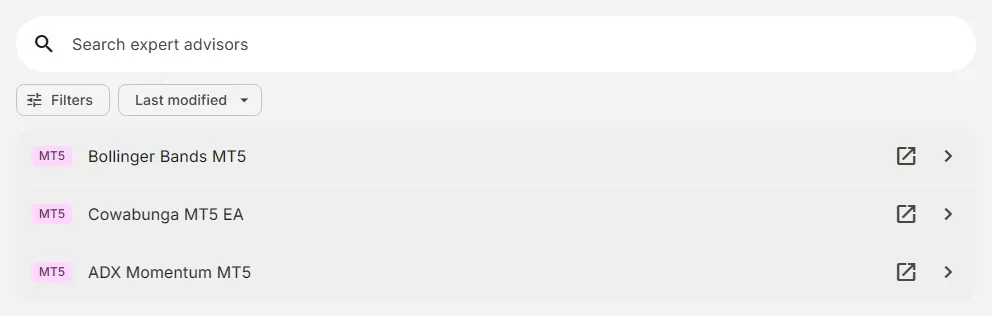
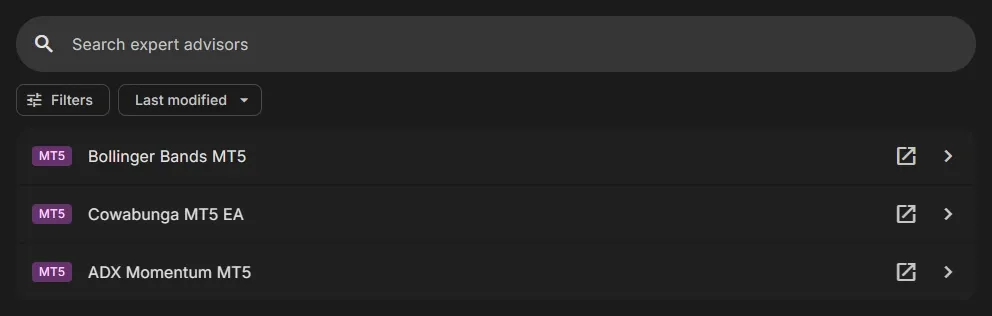
- Search: finds Expert Advisors by name.
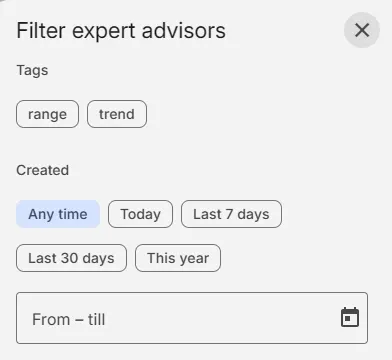
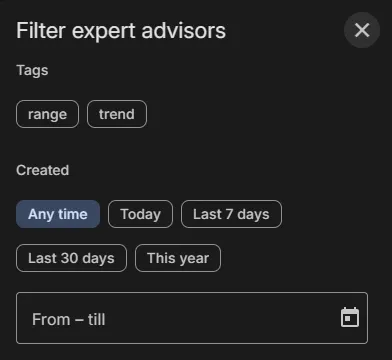
- Filters: show only the Expert Advisors with a tag, or created in a period (Today, Last 7 days, Last 30 days, This year, or your own dates).
- Sort: Last modified, Newest, Oldest, Name A–Z or Name Z–A.
- Click an Expert Advisor to open it, or the open-in-new icon to open it in a new window.
- + Add Expert Advisor starts a new one: see Add a new Expert Advisor.
You can add tags to your Expert Advisors to organize them, for example by strategy (trend, range) or by status (testing, live). Then filter your list by tag.
Add a tag
Section titled “Add a tag”- Open your Expert Advisor and click the Tags icon (#) in the app bar. On a phone: More actions (⋮) > Tags.
- The Tags panel opens. Type a tag in Add tag….
- Press Enter or a comma to add it. Choose a tag you used before from the suggestions, or Create ”…” for a new one.
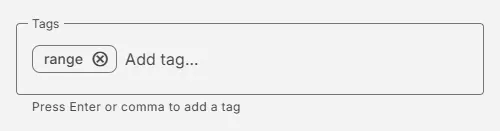
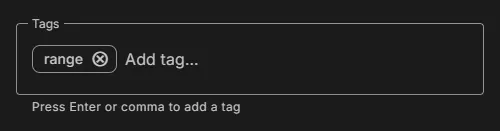
To remove a tag, click its ⊗.
Filter your list by tag
Section titled “Filter your list by tag”- Click Experts in the navigation, then Filters above your list.
- Under Tags, select one or more tags.
- Click Apply. The list only shows the Expert Advisors with at least one of those tags. Reset shows all of them again.
The four columns
Section titled “The four columns”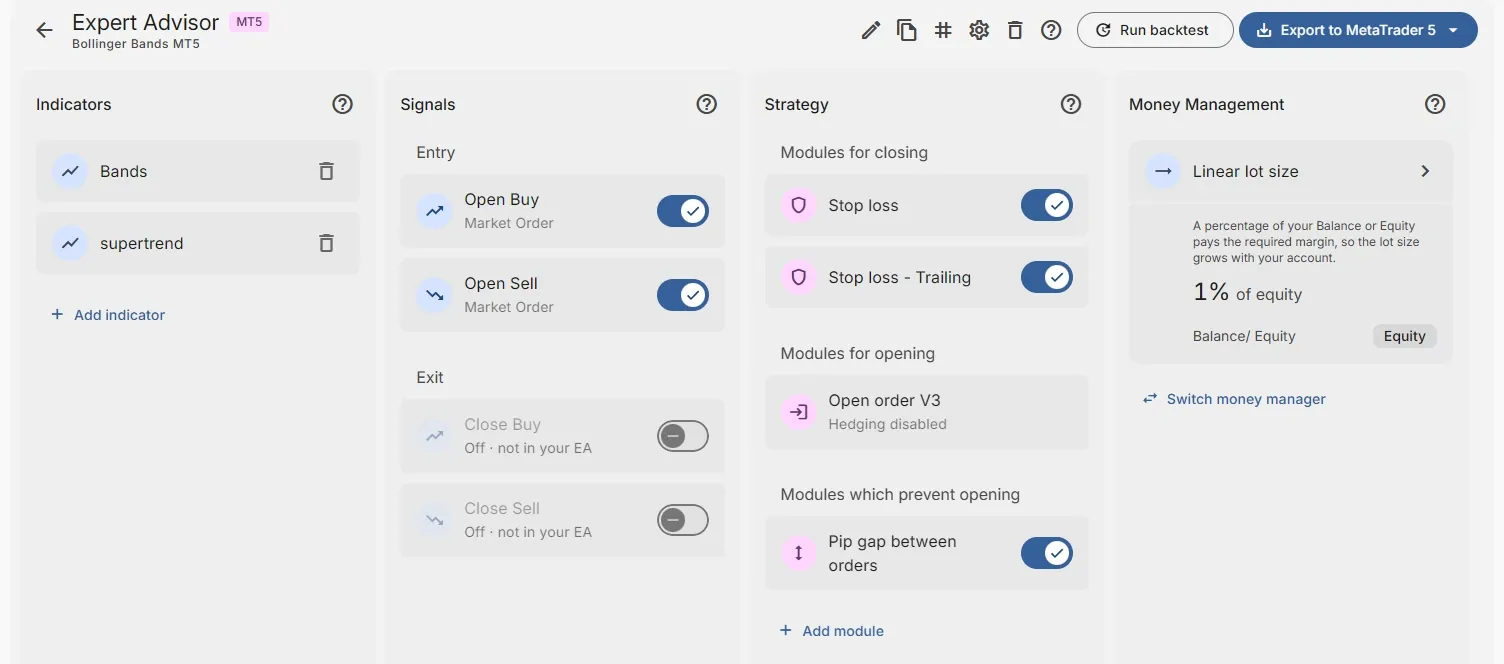
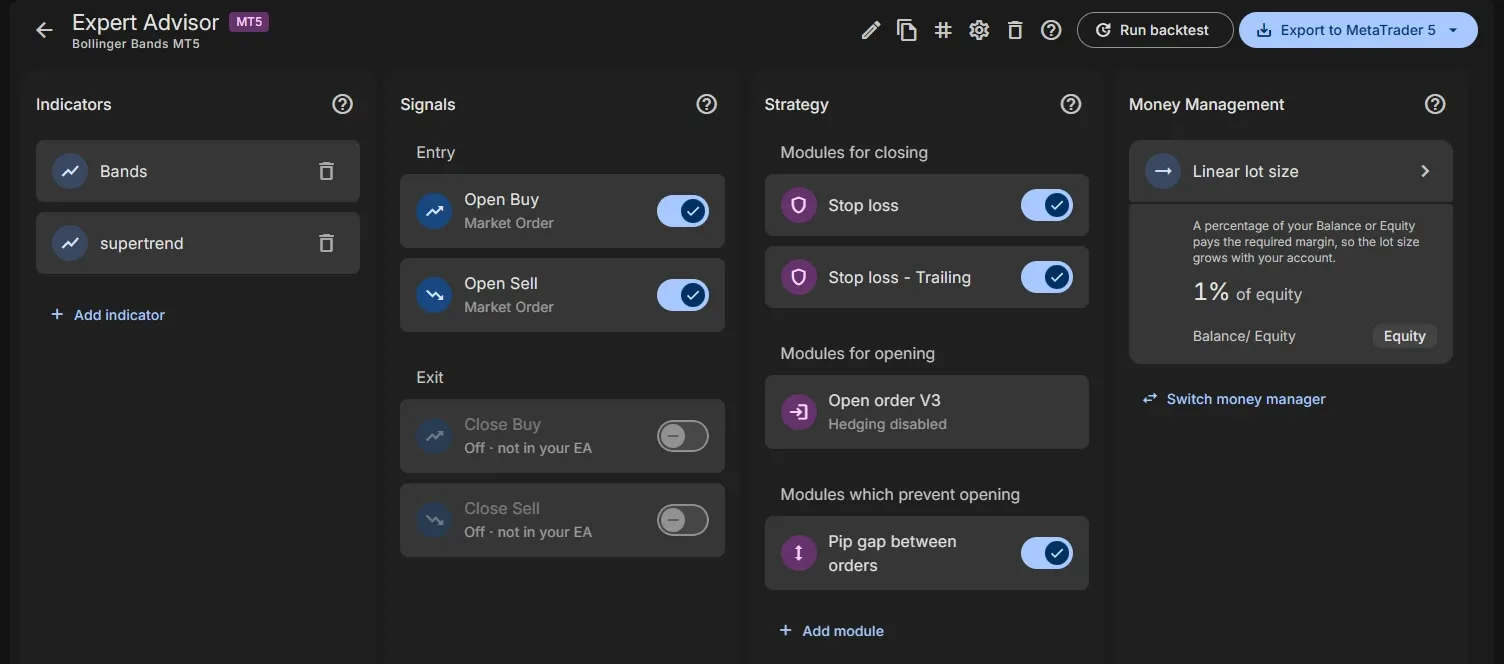
Each column has a ? that opens its help next to the editor.
Indicators
Section titled “Indicators”The indicators your EA uses, such as Bands or a custom indicator you uploaded. Add indicator adds one. See Add an indicator to your EA.
Signals
Section titled “Signals”The four signals: Open Buy and Open Sell (Entry), Close Buy and Close Sell (Exit). Click a signal to edit its conditions; the switch turns it on or off. See Signals and conditions.
Strategy
Section titled “Strategy”The strategy modules, in three groups: Modules for closing, Modules for opening and Modules which prevent opening. Add module adds one. See Strategy Modules.
Money Management
Section titled “Money Management”The money manager that decides the lot size of each order, with a summary of its settings. Switch money manager chooses another one. See Money Management.
The app bar
Section titled “The app bar”Above the columns, from left to right:
- ← (Go back to your Expert Advisor list), and the name of the EA with its platform.
- Rename: give the EA another name. Names are unique.
- Copy: make a copy of the EA under a new name, for example to try a change.
- Tags (#): see Tags.
- Settings: where Stop Loss and Take Profit are managed, and Lock Expert Advisor. See Settings.
- Delete: delete the EA.
- Help (?): the help of the whole Expert Advisor.
- Run backtest: test the EA in the cloud. See Run a backtest.
- Export to MetaTrader 4 / 5: download the EA. See Export to MT4 / MT5.
A locked EA has no Rename and Delete, and shows a lock icon next to its name.
On a phone or a small screen
Section titled “On a phone or a small screen”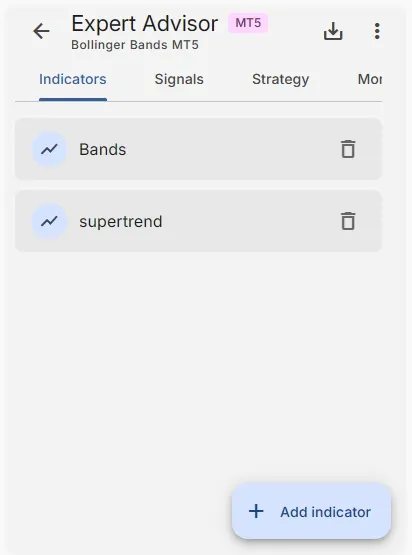
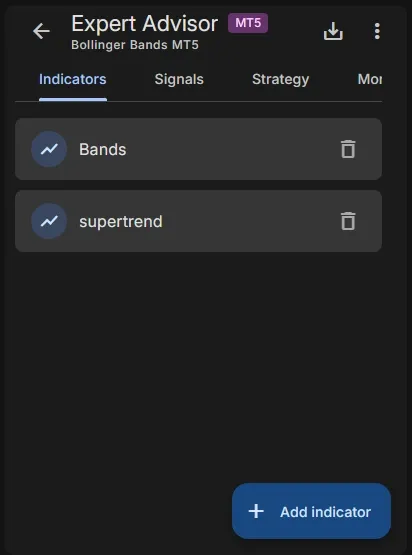
- The four columns become tabs. Tap a tab to switch.
- The button at the bottom adds an item to the open tab: Add indicator or Add module.
- The export icon opens the export options at the bottom of the screen.
- More actions (⋮) has the rest of the app bar: Run backtest, Rename, Copy, Tags, Settings, the help and Delete.
When your EA doesn’t open trades yet
Section titled “When your EA doesn’t open trades yet”An EA only opens trades when Open Buy or Open Sell has a condition. When you run a backtest or export an EA without one, the dialog Your Expert Advisor doesn’t open trades yet tells you so:
- Open Buy opens a trade that profits when the price rises.
- Open Sell opens a trade that profits when the price falls.
Click Add condition to open the Open Buy signal and add one, for example: an indicator crosses above a level. See Signals and conditions.
Related
Section titled “Related”- Add a new Expert Advisor: Template, Blank or AI Agent
- Free and Pro plan compared: what each plan can do
- Build your EA: a complete EA, step by step
MetaTrader is a registered trademark of MetaQuotes Ltd. EA Builder Pro is not affiliated with MetaQuotes.