My Indicators: manage your indicators
My Indicators (Indicators in the navigation) lists the custom indicators you uploaded. Here you upload new ones, check their analysis and modes, and download or delete them.
In short:
- Upload Custom Indicator adds a new indicator: see Upload a Custom Indicator.
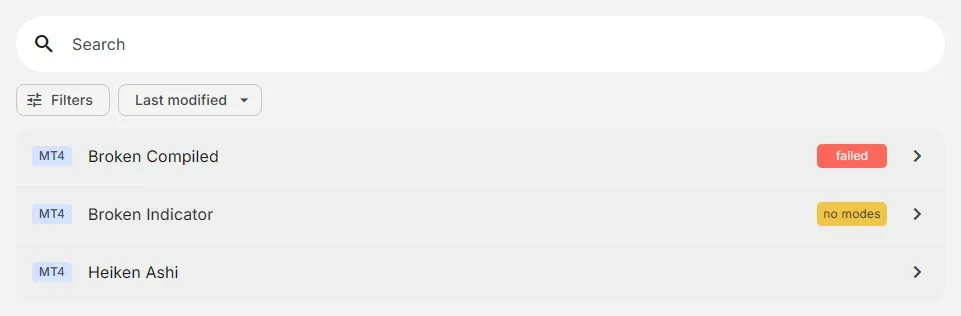
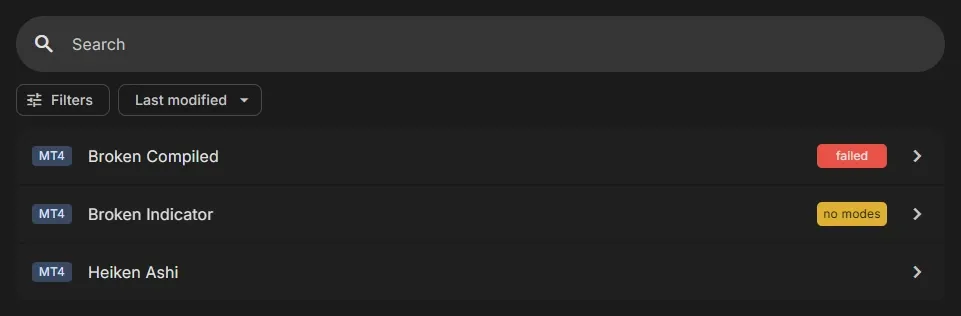
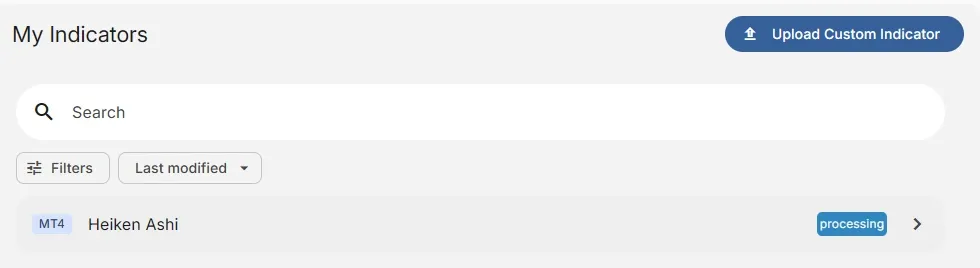
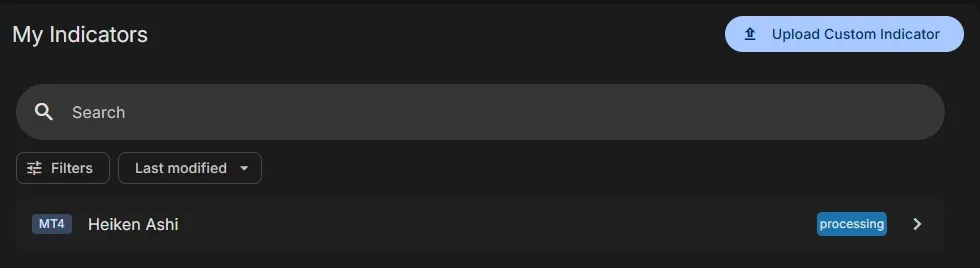
- A badge shows the analysis status while an indicator is analysed or when something went wrong.
- Click an indicator to open its Overview, Parameters and Modes.
- The list shows the indicators of the platform you selected in the app bar (MT4 or MT5).
Find an indicator
Section titled “Find an indicator”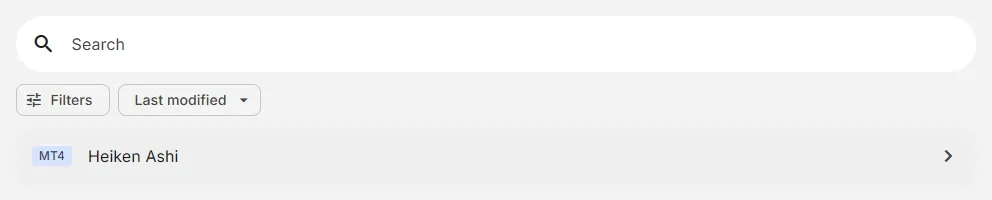
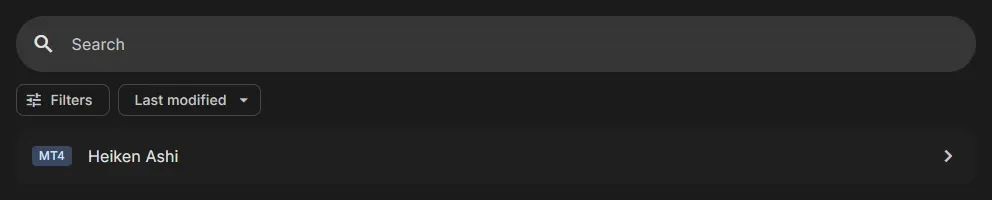
- Search: finds indicators by name
- Filters: Analysis (status), Category, Created, File type (Source code (MQL) or Compiled (EX)) and Source
- Sort: Most used, Newest, Oldest, Name A–Z, Name Z–A, Last modified
Analysis status
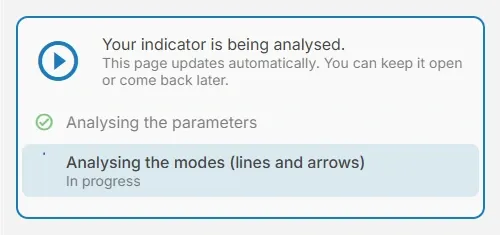
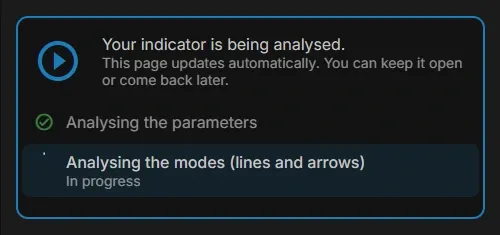
Section titled “Analysis status”After an upload, EA Builder Pro analyses the indicator in two steps: first its parameters, then its modes (lines and arrows). It runs on our backtesters, First In First Out, and can take up to 15 minutes. The page updates automatically: you can keep it open or come back later.
| Status | Badge | What it means | What to do |
|---|---|---|---|
| Queued | queued | Your indicator is waiting in the queue for a free backtester | Wait: it is analysed automatically |
| Being analysed | processing | The parameters and modes are being analysed | Wait |
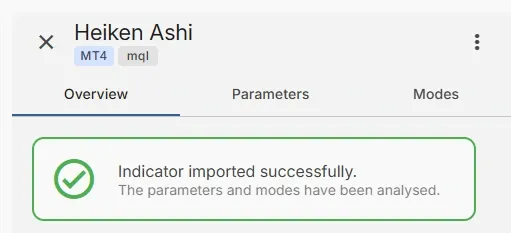
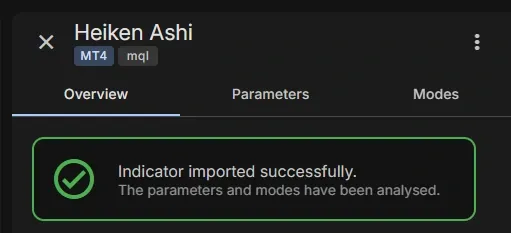
| Ready | none | Indicator imported successfully: the parameters and modes have been analysed | Check the modes and use it in your EA |
| No modes | no modes | Indicator imported, but its lines and arrows (modes) could not be detected | Enter the buffer number yourself when you use this indicator: see Plan C |
| Failed | failed | The analysis failed, for example because the indicator could not be compiled | Check that you uploaded the right file, or contact us |
The indicator page
Section titled “The indicator page”Click an indicator to open it. It has three tabs:
- Overview: the analysis status, or the description of the indicator
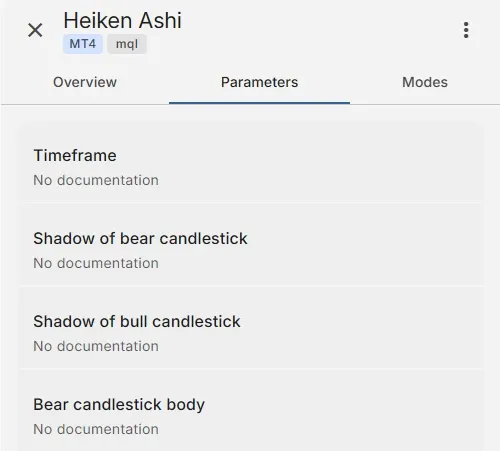
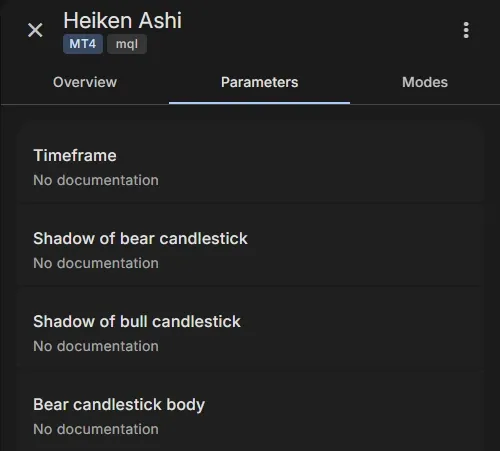
- Parameters: the parameters (inputs) of the indicator
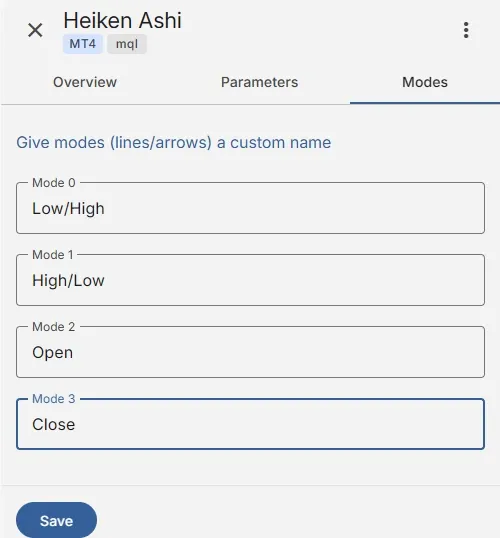
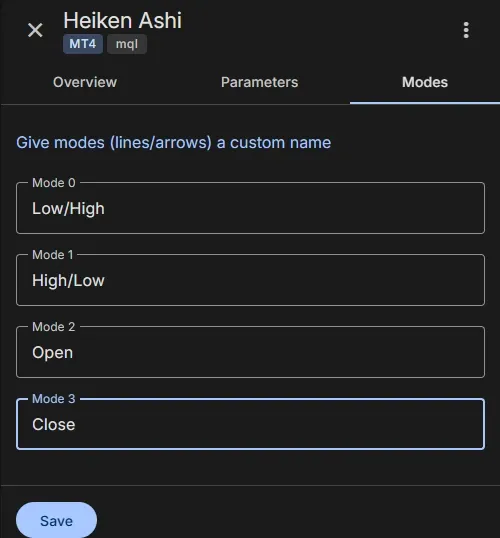
- Modes: the modes (lines/arrows), where you give them a custom name
Overview
Section titled “Overview”For your own indicator: the analysis status, as in the table under Analysis status. For a MetaTrader or web indicator: its description from the Indicator Reference.
Parameters
Section titled “Parameters”The parameters (inputs) that were found in the indicator, in the order of the file, with their documentation if available. You set their values when you add the indicator to an EA.
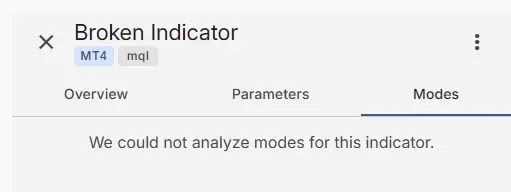
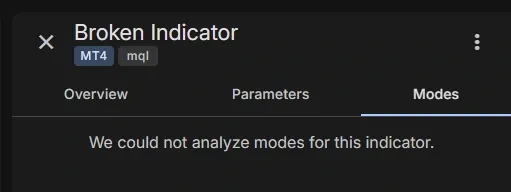
The modes (lines and arrows) that were found. Here you give them a name: see Name the modes. An indicator without detected modes shows “We could not analyze modes for this indicator.”: enter the mode number yourself when you add it to an EA.
Download or delete an indicator
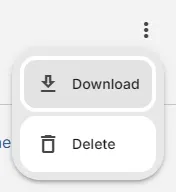
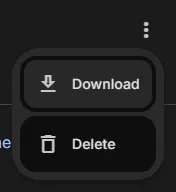
Section titled “Download or delete an indicator”The menu (⋮) at the top of the indicator page has:
- Download: downloads the file you uploaded.
- Delete: deletes the indicator. A custom indicator that is used by one of your EAs can’t be deleted: remove it from those EAs first.
Related
Section titled “Related”- Upload a Custom Indicator: upload and find your modes
- Add an indicator to your EA: name, modes and parameters
- Use indicator in Trading Signal: build a condition with it
MetaTrader is a registered trademark of MetaQuotes Ltd. EA Builder Pro is not affiliated with MetaQuotes.