Settings
The settings of your Expert Advisor (EA) apply to the whole EA, not to one module.
In short:
- Where are Stop Loss and Take Profit managed?: by your Broker or by the Expert Advisor itself.
- Lock Expert Advisor: make a finished EA read-only.
To open the settings, open your EA in the EA editor and click the settings icon in the app bar, or Settings in the menu.
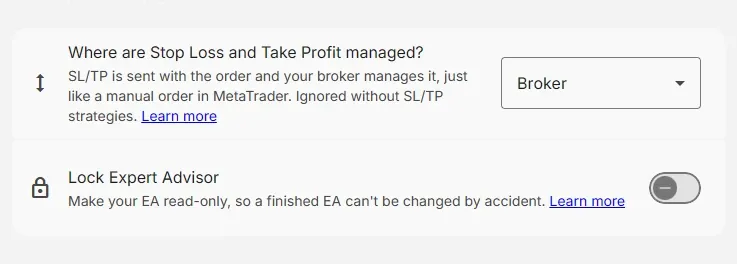
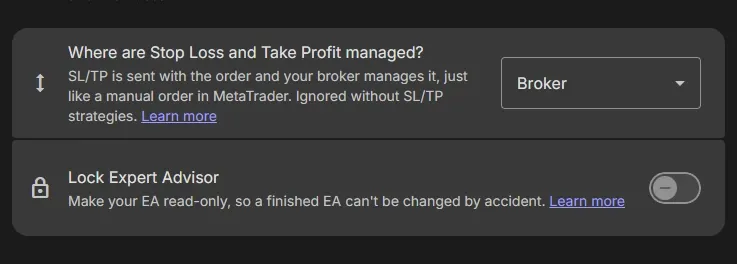
Where are Stop Loss and Take Profit managed?
Section titled “Where are Stop Loss and Take Profit managed?”This setting decides who closes an order at its Stop Loss (SL) and Take Profit (TP): your Broker or the Expert Advisor. It only matters when your EA has a Stop Loss or Take Profit module; without one it is ignored. For more about modules, see Strategy Modules.
Broker
Section titled “Broker”When your EA places an order with the broker, the Stop Loss and Take Profit are sent along with the order. This works the same way as when you place an order in MetaTrader yourself and set the SL/TP.
- The broker manages your SL/TP levels and closes the order when they are hit, also when MetaTrader is not running.
- With trailing stops, the EA still moves the SL/TP levels. How often depends on two inputs of your EA, which you can
change in MetaTrader:
- Broker: Minimal SL/ TP update frequency (Pips): how many pips the price must move before the EA updates the SL/TP. Default 1.
- Broker: Minimal SL/ TP update frequency (Seconds): how many seconds must pass before the EA updates the SL/TP again. Default 30.
Expert Advisor
Section titled “Expert Advisor”When your EA places an order with the broker, no Stop Loss or Take Profit is set. Instead, the EA draws the SL/TP lines on the chart, watches the price itself and closes the order when a level is hit.
- The broker doesn’t know your levels, so they stay private.
- The EA can only close the order while it runs: a stable VPS and internet connection are crucial.
- EA: Allow manually moving TP and SL lines (input, default
false): withtrue, you can drag the SL and TP lines on the chart, and the EA uses the levels you set.
Broker or Expert Advisor?
Section titled “Broker or Expert Advisor?”| Broker | Expert Advisor | |
|---|---|---|
| Features | Limited | Advanced |
| Reliability | Most reliable | Requires stable VPS/ Internet |
| SL/TP visibility | Visible on PC and Mobile | Visible on PC only |
| Discretion | Shared with broker | Private |
With a Pro export you can still switch in MetaTrader, with the input TP/ SL managed by the broker (false = by EA).
Lock Expert Advisor
Section titled “Lock Expert Advisor”Lock your EA when it is finished: it becomes read-only, so it can’t be changed by accident.
- You can open, backtest and export a locked EA, but not change it.
- A lock icon shows next to the EA’s name in the app bar. Hover over it: “EA is locked. Go to settings to unlock”.
- To edit the EA again, open the settings and switch Lock Expert Advisor off.
Related
Section titled “Related”- Stop loss and Take profit: the modules this setting applies to
- Export to MT4 / MT5: inputs are only in a Pro export
MetaTrader is a registered trademark of MetaQuotes Ltd. EA Builder Pro is not affiliated with MetaQuotes.